What the work is
- Spend a day like a friend with a Guest visiting Japan.
- Only at times that work for you.
- No physical intimacy and nothing sexual.
The full rules are in the Crew Guidelines.
Joining Yes! Oppa as a Crew member takes 4 steps. Applying takes about 10 minutes.
| Step | What to do | Who |
|---|---|---|
| 1 | Sign in with Google | You |
| 2 | Send the Crew application | You |
| 3 | Call with HQ · contract | HQ contacts you |
| 4 | Start once your Crew screens open | HQ turns them on |
1. Sign in with Google
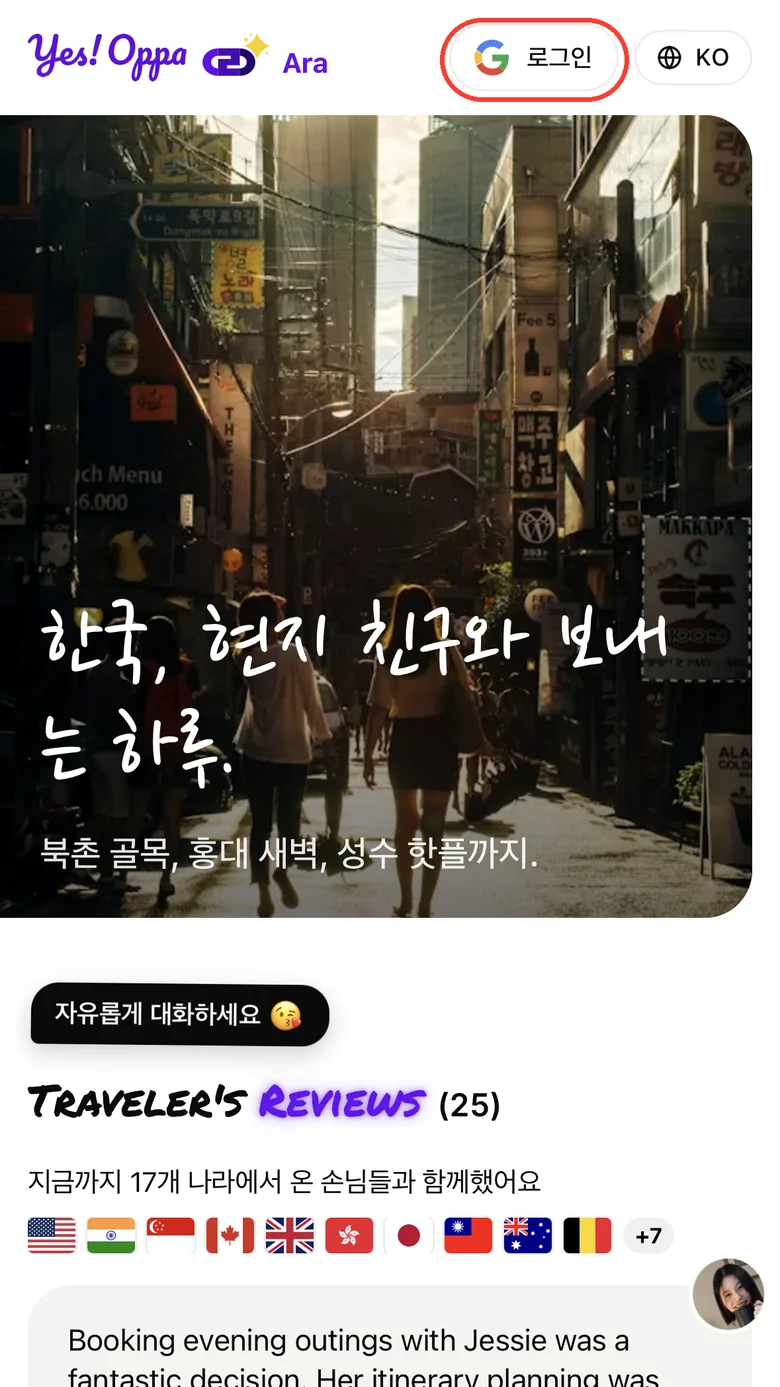
- Open jp.yesoppa.com in Chrome or Safari.
- Tap “Sign in” at the top right, then choose your Google account.
Google sign in is blocked when you open the link inside KakaoTalk or Instagram. Use the menu at the top right and choose “Open in another browser” (or “Open in browser”).
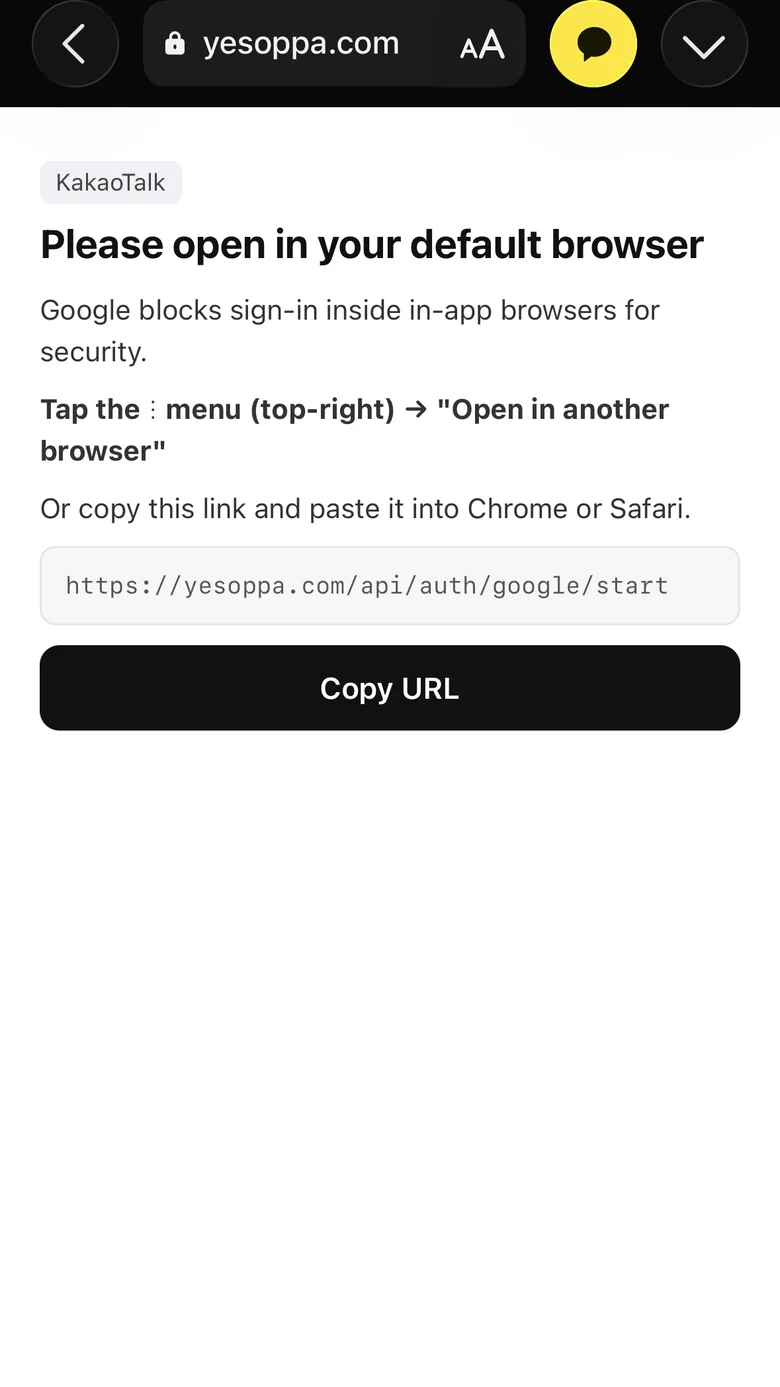
After you sign in, you get one welcome email in English. Guests get the same email, so you can ignore it.
2. Go to the Crew application
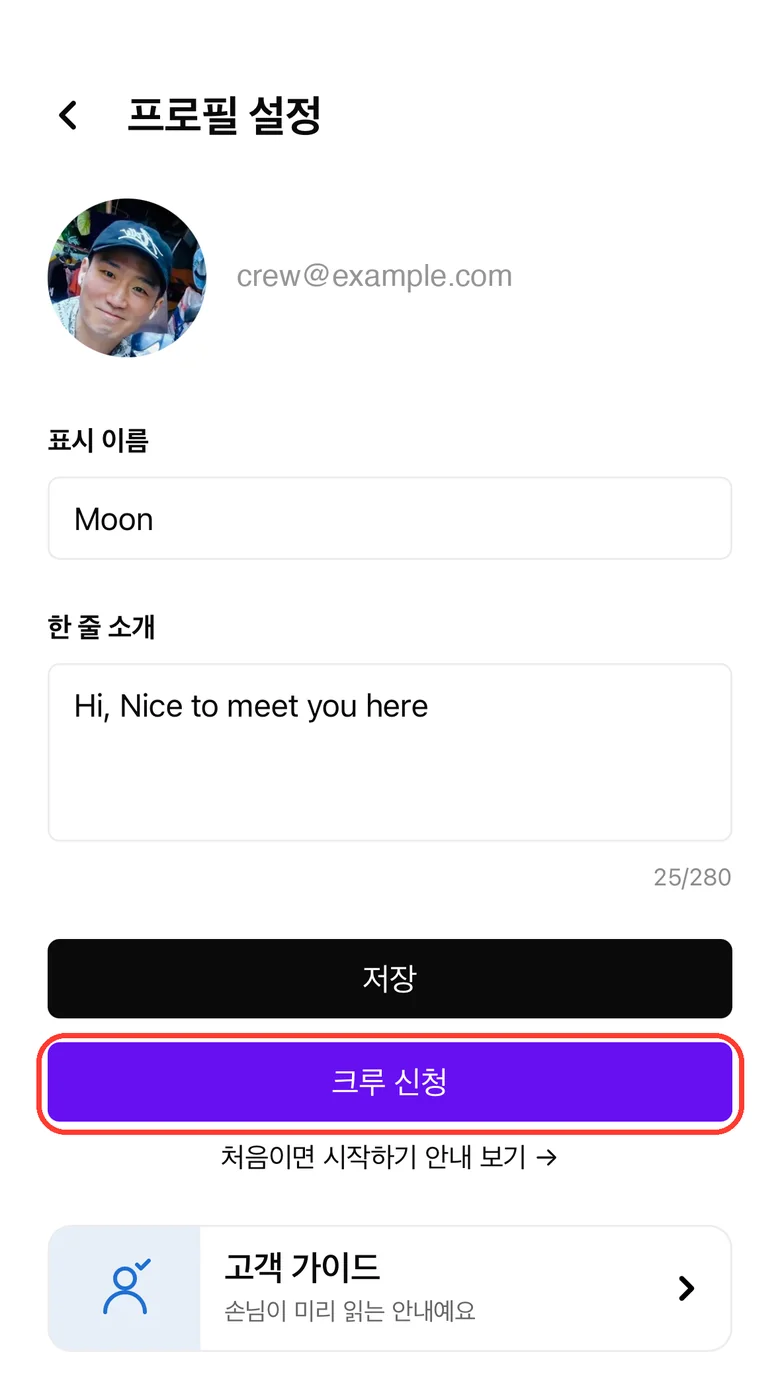
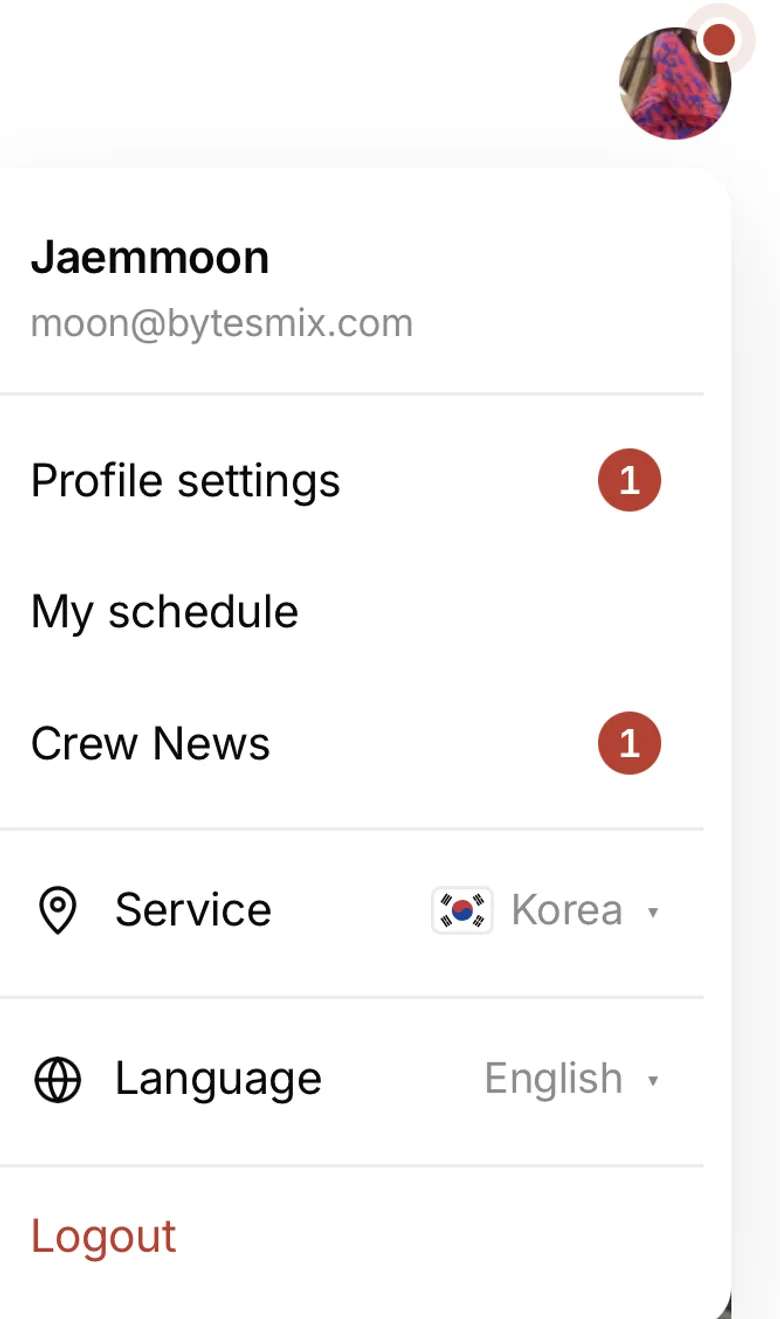
Menu at the top right › “Profile settings” › the purple “Join Our Crew” button. You can also press “Write your Crew application” at the bottom of this page (if you are not signed in, you sign in first and then land on the application).
3. Fill in the application
| Field | Required? | How to fill it in |
|---|---|---|
| Legal name | Required | Same as your ID · never shown publicly |
| English name · nickname | Required | Shown on your profile · if another Crew member already uses it, pick a different one |
| Age range · gender | Required | |
| Where you live | Required | Down to your neighborhood |
| Phone number | Required | For a number from another country, change the country button first |
| Languages you speak | Optional | Only languages you can hold a conversation in |
| Car · available times | Optional | |
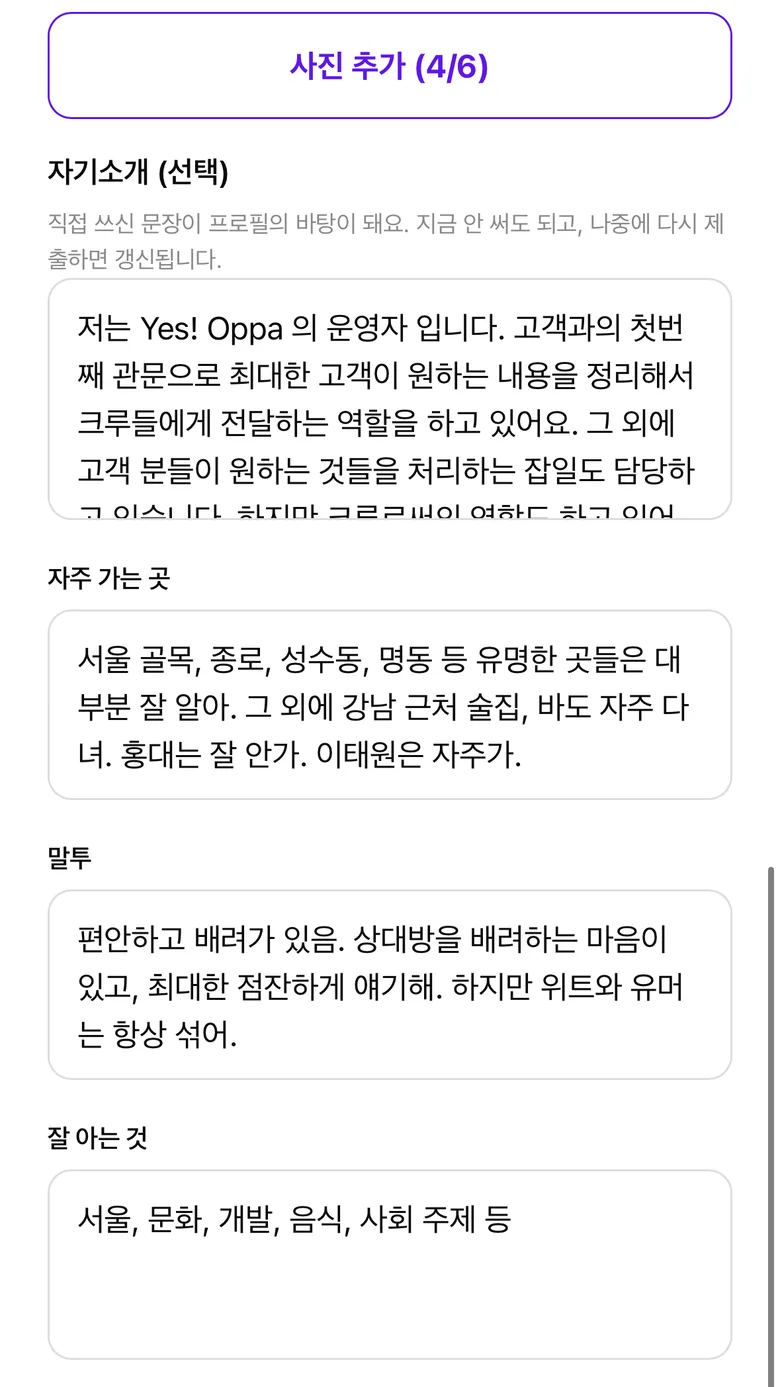
| Profile photos | Required | 4 to 6 photos · up to 25MB each · see “Photo tips” below |
| About you | Optional | See “Tips for your intro” below |
| Agree to the Crew Guidelines | Required | Read the Crew Guidelines to the end, then check “I've read and understood the Crew Guidelines.” |
Photo tips
Your profile photos and display name introduce you as a Crew member on the site and on the Yes! Oppa Instagram (contract, Article 11-2).
Photos that will not do
- Taken indoors, in your room
- With friends in them
- Food
- Someone or something other than you at the centre
- Blurry
Photos that work well
- Your face clearly visible
- A good full-length or half-length shot
- Your Google account photo too: one that shows your face well
- Other Crew members’ profile photos are a good reference. See Crew profiles
Tips for your intro
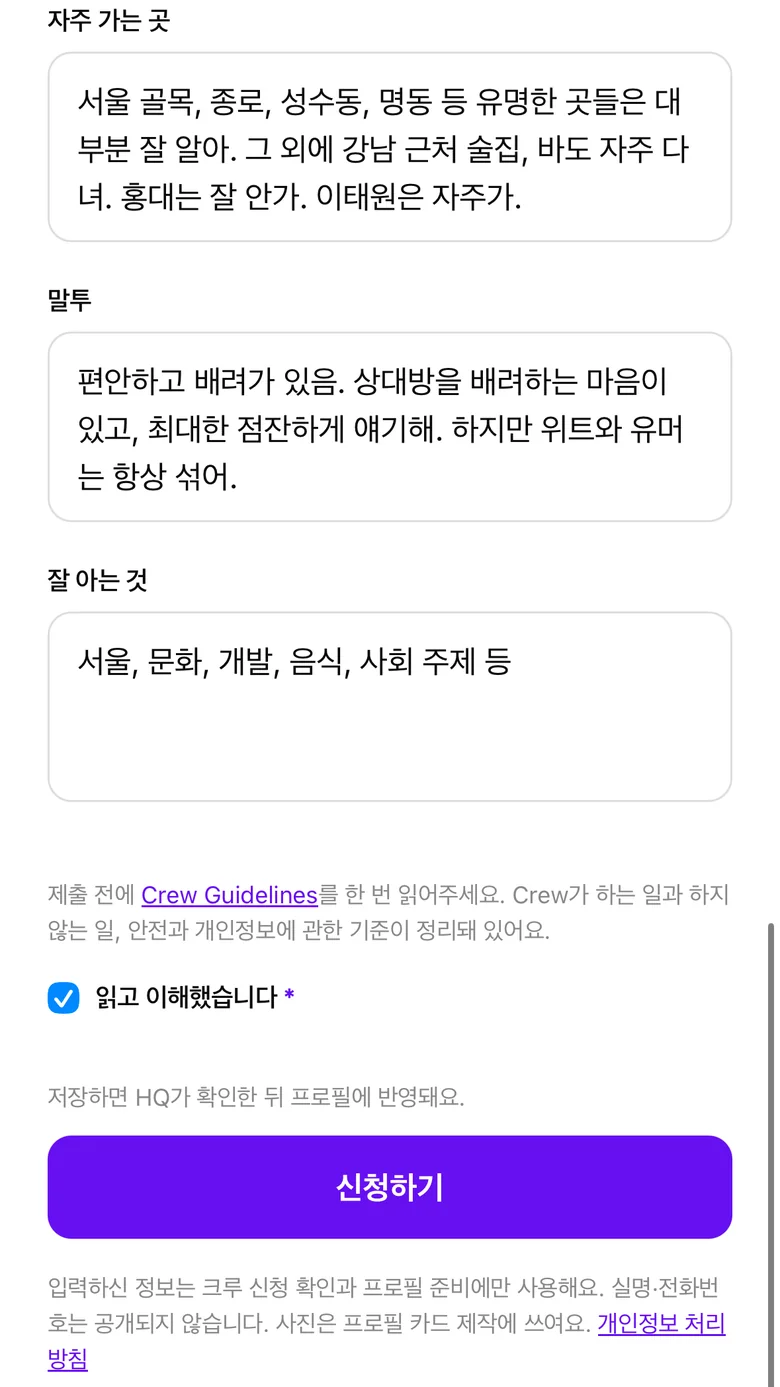
- Write casually, in your own words, and not too long.
- For “places you often go · things you know well”, keep it relaxed and close to your own neighborhood (food · cafes · shopping · walks).
- What you write here is what Ara uses to talk in your voice when a Guest starts the first conversation on your profile.
- Words like “guide, tour, course, program, itinerary” are not allowed (it will not save). Write “walk together, eat together, decide together” instead.
If it doesn't work
| Message on screen | Why · what to do |
|---|---|
| “Please add at least 4 photos.” | Upload 4 or more photos · if you pick more than 7 at once, none of them upload |
| “Couldn’t reach us just now. Please try again shortly.” | Check the photo format (jpg · png · heic) and try again in a few minutes |
| “Someone on our Crew already uses that English name. Please pick another.” | Change the English name field |
| “A few submissions in a row. Give it a minute and try again.” | Try again in 10 minutes |
| “That didn’t go through. Please check the fields and try again.” | Send HQ a screenshot |
| The Google sign-in button does nothing | Update your phone's OS and open the page in a browser outside KakaoTalk (Chrome · Safari) |
4. After you apply
- When you see “Application sent! 🎉”, you are done.
- No notification is sent. HQ checks your application and contacts you by phone or message.
- To change something, just send it again from the same screen.

5. Call with HQ · contract
On the call we ask each other whatever we are curious about, and if it is a good fit, we move on to the contract. The only thing to send HQ then is one or two lines you actually say when you first meet a Guest.
Once HQ turns you on as Crew, enter your Email for the contract yourself under Profile › “Edit Crew Info” › “Payout and contract details”. The contract goes to the email you put there.
Pay is transferred after 3.3% withholding tax.
6. When your Crew screens open
Once HQ turns you on as Crew, “My schedule” · “Crew News” appear in the menu at the top right. When they do, you are ready to start. From there, carry on in Menu › “Crew onboarding” (opens once you are a Crew member).
Once your Crew screens open, first fill in “Payout and contract details” under “Edit Crew Info”. Until you do, a notice bar sits at the top of your profile.
Common questions before applying
Do I need a licence?
No.
How good does my English need to be?
Enough to hold a conversation. Speaking first matters more than fluency.
Does age or marital status matter?
No.
Can I do this alongside a job?
Yes. Enter only the times that work for you.
How much work is there?
As much as the requests that come in. The more free time you have, the more we connect you.

Write your Crew application
Tokyo